Saving a Setup to Recheck the Same Page Every Week
Some checks are worth repeating. An SEO consultant looks at how a client’s page ranks in three countries every Monday. A shop owner checks that a new visitor still gets the welcome offer after each site update. Setting up the same strangers by hand each time gets old fast.
A setup saves a window’s strangers, each with its language and location, under a name. It holds nothing a stranger saw: no address, no cookie, no history. Open it again and you get the same strangers, brand new.
Once a window has the strangers you want, choose Setups, then Save this window as a setup, type a name in the bar and press Enter. It shows up in the same menu under Open in a new window.
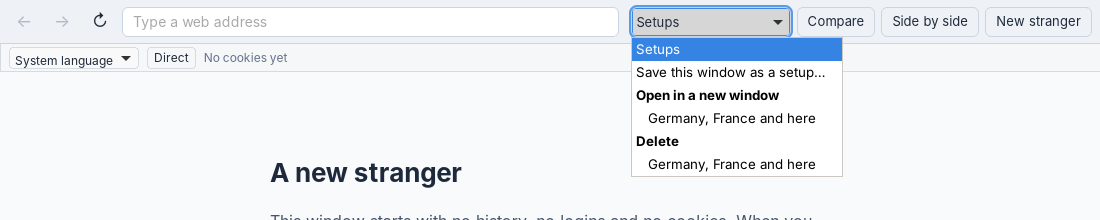
A saved setup in the bar’s menu.
A Weekly Routine
- Open the setup. A new window appears with the same strangers, each with a fresh store, at the start page.
- Type the page’s address once. Every stranger goes there.
- Click Compare, then Save image. The PNG’s file name carries the date and time.
- Close the window. Everything the strangers collected is deleted.
After a few weeks, the saved images line up into a record of what each country, or each newcomer, was shown.
Where Setups Live
Setups are the one thing Unweb keeps, and only once you save one: a small file, setups.json, in Unweb’s settings folder. The reference gives the path for each system. Deleting the last setup deletes the file. A setup carries its proxies’ addresses, so treat the file like any other note of where your proxies are.